Exploit-DB updates

Friday, December 31, 2010

Shell script to check IP (For use with conky)

Well as I used conky on BT4 I began to like having my private IP displayed, so I decided to look at the script it used and it's as simply as this, make a file on your desktop named ip.sh and add the following;

#!/bin/bash
wget -q -O - checkip.dyndns.org|sed -e 's/.*Current IP Address: //' -e 's/<.*$//'

Save this file and make it executable with the following command;

chmod 775 ip.sh

This allows you to read, write and execute the file. You can now try it out with "./ip.sh" and it should display your IP in the shell. If so then it's ready for use with conky. To use a shell script in conky you need to add the following command to the .conkyrc;

${execi 300 /home/youruser/Desktop/ip.sh}

If all's well, it's displaying your IP now.

Wednesday, December 22, 2010

Hamster & Ferret

"Hamster is a tool for HTTP session hijacking with passive sniffing. It eavesdrops on a network, captures the session cookies, then imports them into the browser to allow you to hijack their session. There is a more complete description in the help section."


These tools make a great addition when performing the MITM attack I demonstrated in the SSLStrip video.

So say we got everything setup like we did in the video, we can fire these up by going to the directory they're installed in (which is /pentest/sniffers/hamster/ for BT4) then start up ferret like so "./ferret -i wlan0"

Then you can start hamster next with "./hamster" then open your browser of choice and set the proxy to "127.0.0.1 : 1234" like it says. Type hamster in the url, select your interface and there you go. Easy as that.

Download these tools with apt-get install hamster or download here

TrueCrypt


Main Features:

 Read more here - http://www.truecrypt.org/docs/

 Download using the apt-get command or - http://www.truecrypt.org/downloads

Monday, December 20, 2010

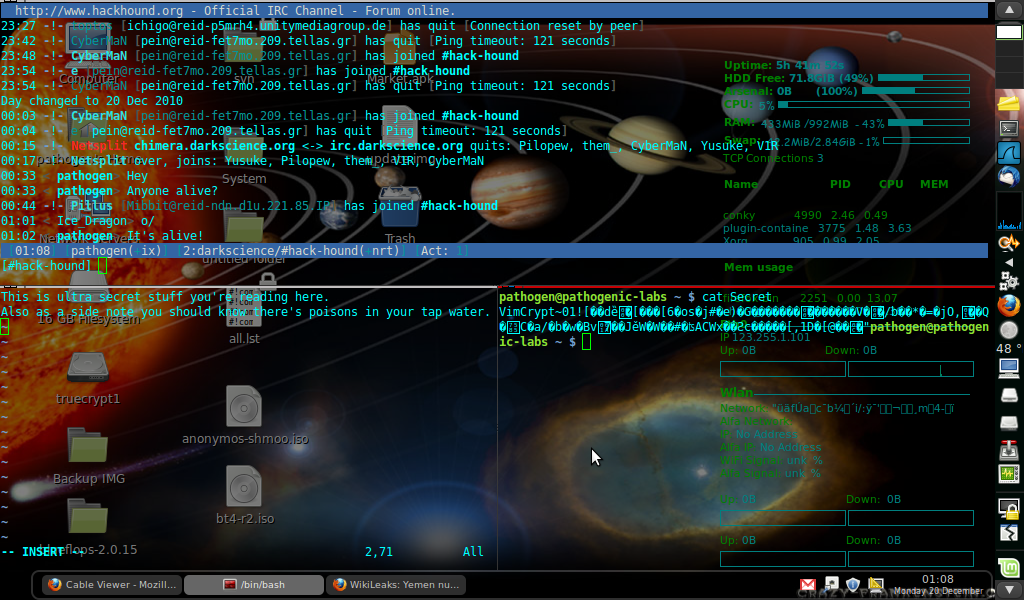
Crypting text with my new favorite text editor, VIM.

So this is extremely simply, if you know about it. Which I didn't untill just now when looking for a simple way to encrypt text data. Now it's as simple as this, when starting a new file run this command to have it encrypted as well;

"vim -x filename"

Which will prompt you for the password you would like to use to encrypt it. To save a while once you've finished up press "ctrl o" then ":w filename"

And you're done. Though I'm not all to sure how secure the encryption is, I still suggest using truecrypt.

You can get vim with the "apt-get install vim" command.